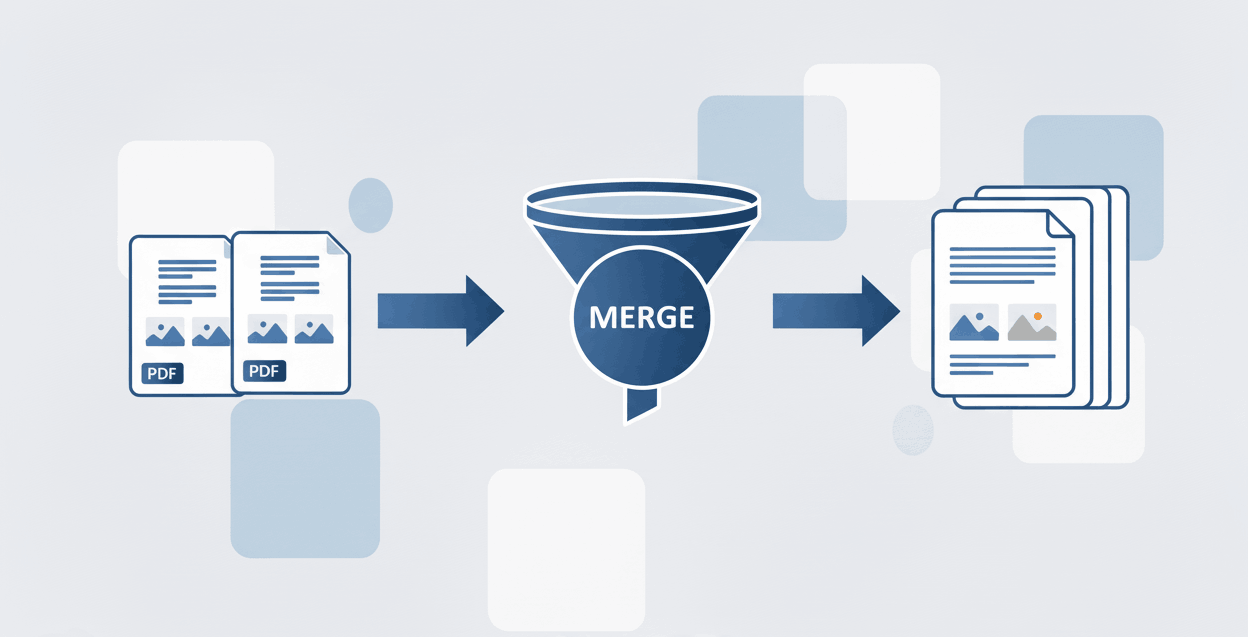
How to Merge PDF files?
Combine multiple documents and append pages securely into one file.
Quick Summary: Want to take out pages from a PDF or erase specific sections safely? Our zero-upload online tool lets you delete one page or cut multiple parts of a PDF document instantly. It runs directly inside your browser, meaning it is 100% private and perfectly supports Mac, Windows, and mobile devices without software.
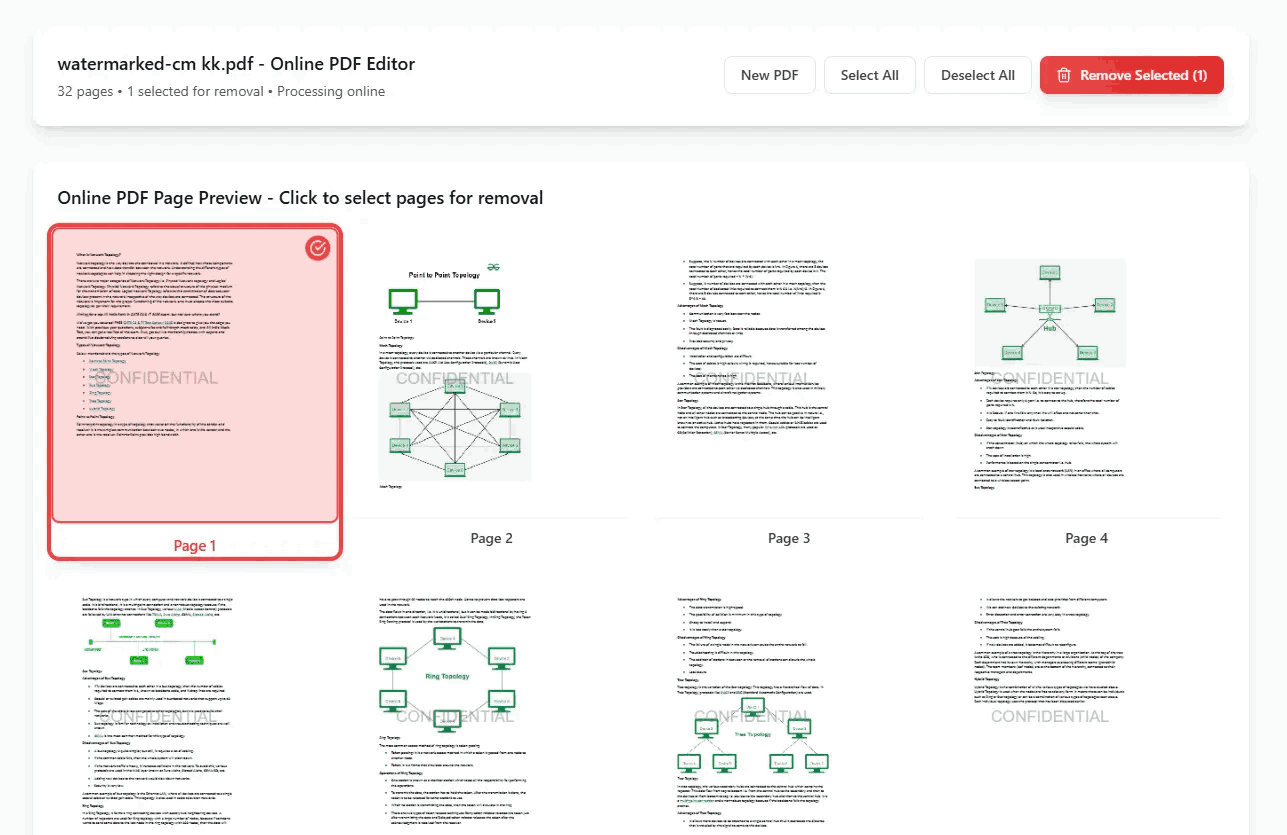
Easily delete one page from a PDF or select multiple thumbnails to remove some pages simultaneously.
Your documents stay local. We never upload your file, making it safe to take out pages from sensitive records.
You don't need Mac Preview or Adobe Acrobat. Simply open your browser and cut part of a PDF document instantly.
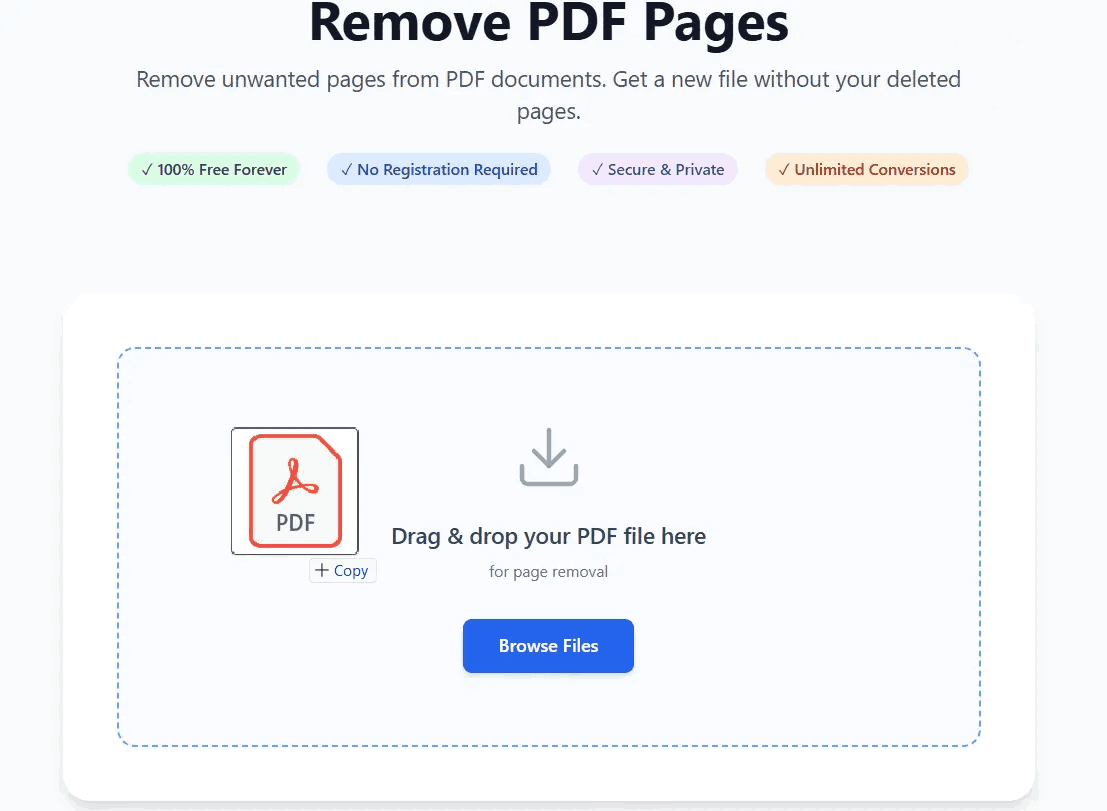
Whether you need to erase a blank page or cut an entire chapter, our advanced technology makes organizing simple:
Users constantly search for ways to take off unwanted pages from PDF documents. Here is why you might need this tool:
A very common struggle is figuring out how to delete a page from pdf file on Mac without paying for expensive software. While Apple's built-in Preview app has some basic functions, it can be confusing and risky to use on original files.
With PDFSolving, operating systems do not matter. Because the tool runs on web technologies, you can open Safari, Chrome, or Edge to delete pages on a pdf document instantly. It is the best way to remove pages from a pdf free, regardless of the device you are using.
You can use PDFSolving's online tool completely for free. Simply upload the document, visually select the pages you wish to take out, and hit delete. There are no daily limits or hidden paywalls.
Once your file is loaded into our visual viewer, locate the exact page you want to get rid of. Simply click the trash icon hovering over that single page to erase it, then download the modified file.
Document assembly often requires two steps. First, use this Remove PDF Page tool to erase unwanted parts or blank sheets. Then, navigate to our Merge PDF tool to insert or append new pages exactly where you want them.
The safest way is to use a zero-upload platform like ours. When you try to take out a page from a PDF document here, the actual cutting process happens locally inside your browser memory. Your file is never exposed to hackable remote servers.
Learn tips and tricks for managing your documents efficiently.