How to Delete Pages in PDF
on iPhone and iPad
Quick Summary: Wondering how to delete a page in a PDF on your iPhone or iPad? You don't need to install any heavy applications from the App Store. Our highly secure, browser-based tool allows you to remove unwanted pages instantly. Because it uses zero-upload technology, you won't waste any mobile data (MBs) and your documents remain 100% private.
No App Needed
Skip the App Store. Just open Safari or Chrome. Our web-based tool provides a clean, fast interface right in your browser.
Save Mobile Data (MB)
No more wasting precious MBs! Because your PDF isn't uploaded to a remote server, you save 100% of your mobile internet data.
100% Privacy
Perfect for business files. Your confidential documents never leave your iPhone or iPad. All edits happen locally.
How to Remove a PDF Page on iOS (Step-by-Step)
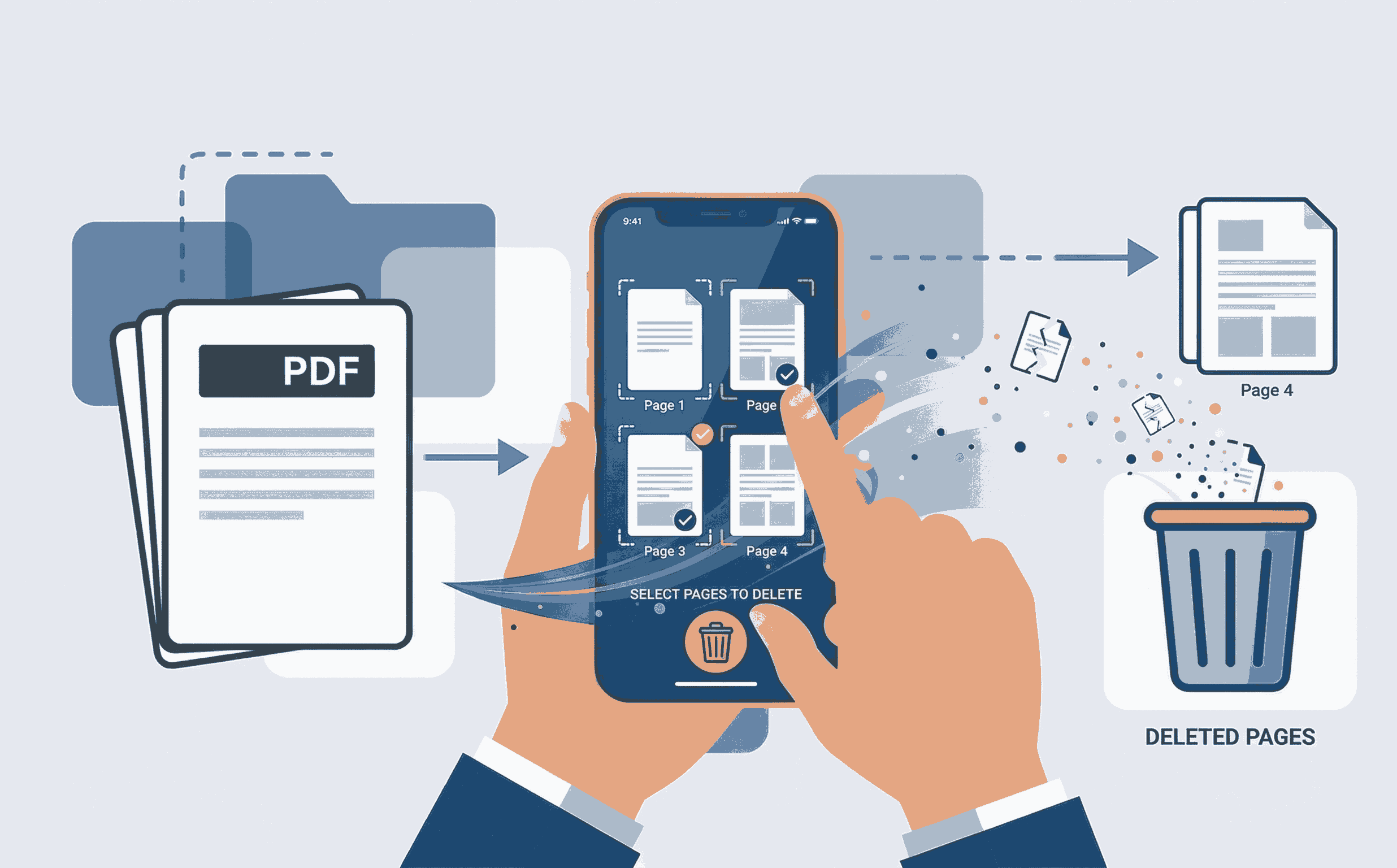
Editing documents on your mobile device has never been easier. Whether you are a student or a professional, just follow these steps:
- 1. Open Browser: Navigate to the Remove PDF Page tool using Safari on your iPhone or iPad.
- 2. Select File: Tap to upload and select your file from the 'Files' app. The document loads instantly on your screen.
- 3. Tap and Delete: Simply tap the thumbnails of the pages you want to delete. Hit the trash icon, then download the newly organized PDF to your device.
Benefits & Advantages for Everyone
Why should you use PDFSolving instead of downloading native iOS apps? The answer is simplicity and efficiency:
- For Students: Quickly organize lecture notes. Erase blank or irrelevant pages before printing to save ink and paper.
- For Teachers: Edit down massive textbook chapters into bite-sized reading materials for your class directly from your iPad.
- For Businessmen & Professionals: Remove sensitive or confidential pages from contracts and financial reports before emailing them to clients.
Frequently Asked Questions
❓ Do I need to download an app to delete PDF pages on iPhone?
No! You do not need to download any heavy apps from the App Store. You can simply use your Safari browser and our free PDFSolving web-based tool to delete pages instantly.
❓ Will deleting pages use up my mobile data (MB)?
No. Our tool utilizes zero-upload technology. The PDF file is processed entirely in your device's local memory, meaning you do not waste megabytes (MB) uploading and downloading the document to a server.
❓ Is it easy for a student or teacher to use?
Yes, PDFSolving features an incredibly simple interface. Whether you are a student organizing notes, a teacher preparing assignments, or a professional, you can view thumbnails and delete pages with just two taps.
❓ Is it safe to edit sensitive documents on an iPad?
Absolutely. Because of our client-side architecture, your confidential files never leave your iPad. They are completely secure from any remote server interception or data leaks.
Explore More PDF Guides
Learn tips and tricks for managing your documents efficiently.
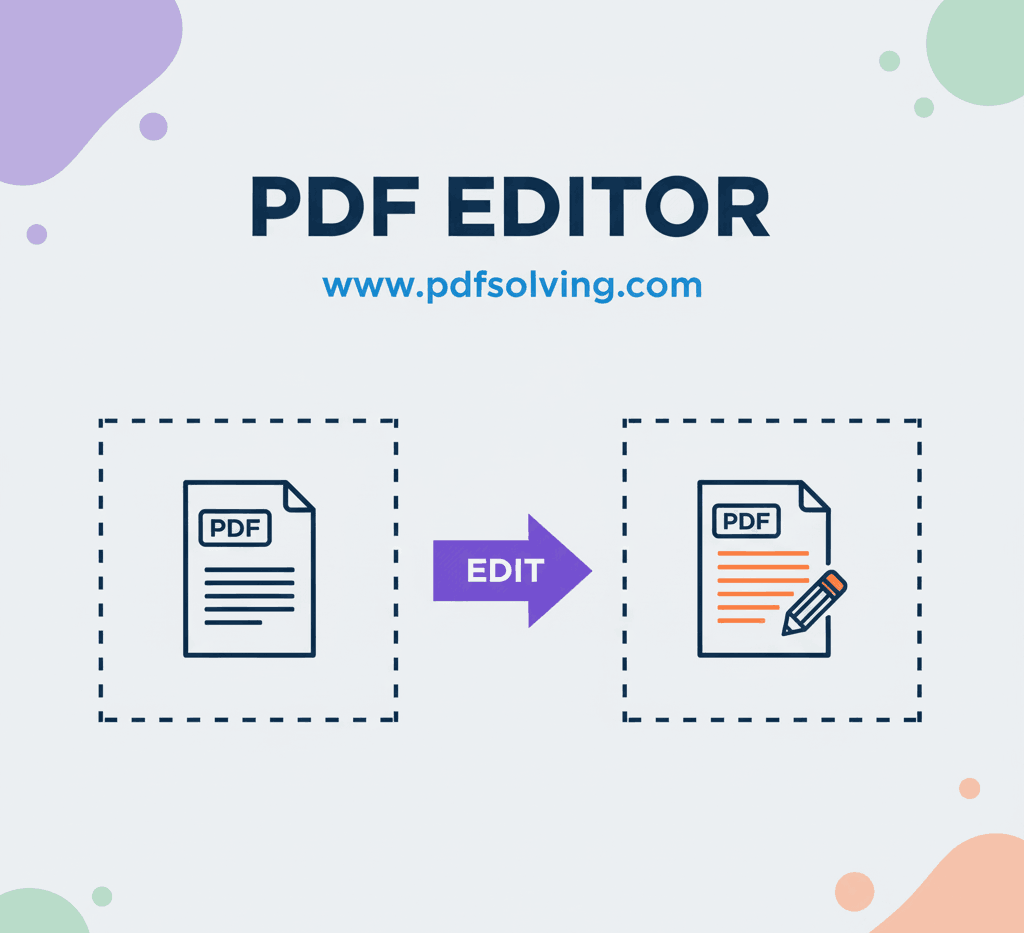
How to edit PDF Document online
Add and edit text, images, borders, digital signatures, and shapes in your PDF documents.
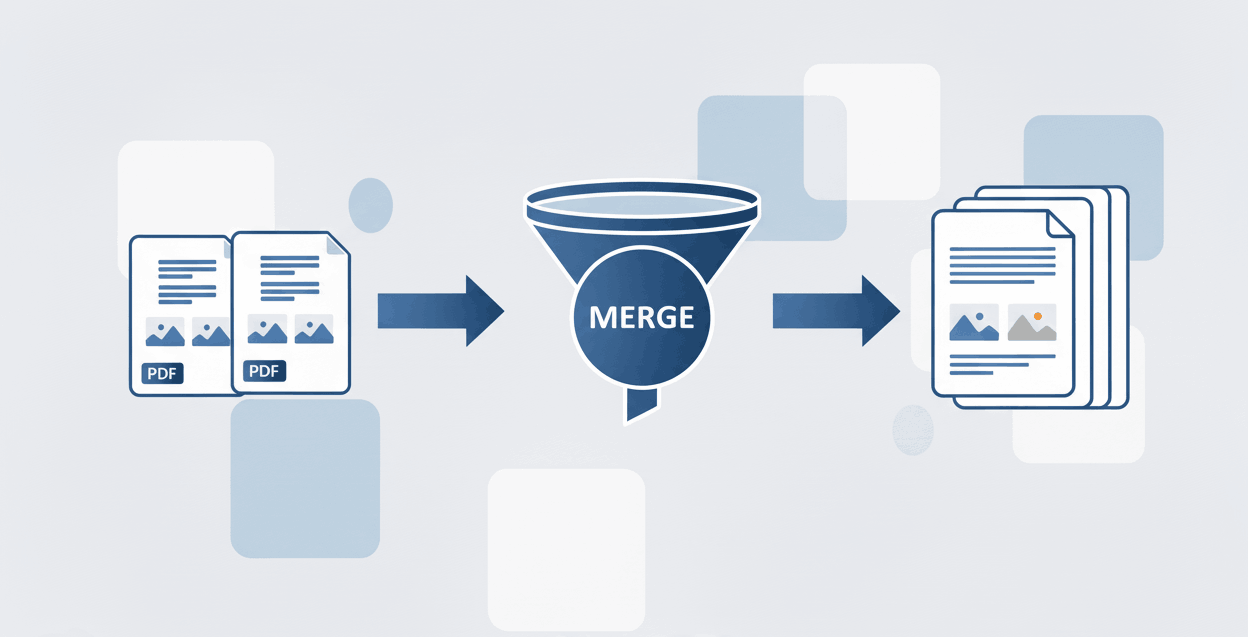
How to Merge PDF files online
Learn to securely merge and combine multiple PDF documents into a single file in seconds.
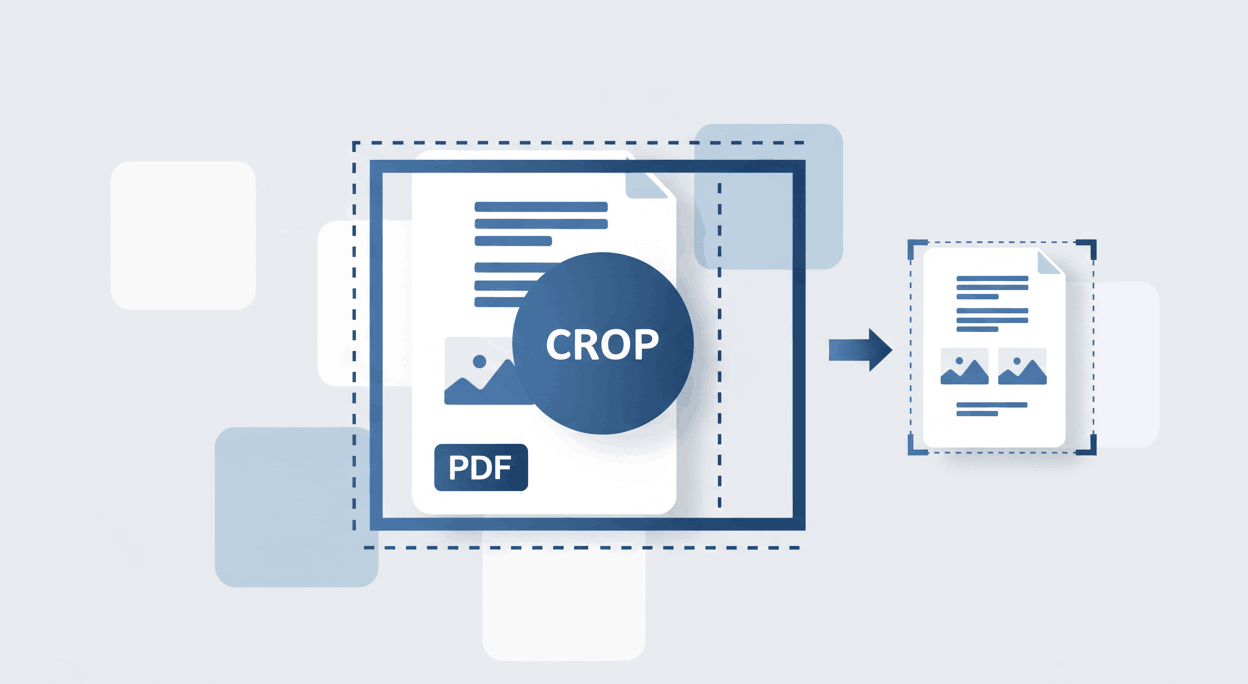
How to Crop PDF page online
Learn how to precisely trim unwanted margins, resize pages, and remove white space.
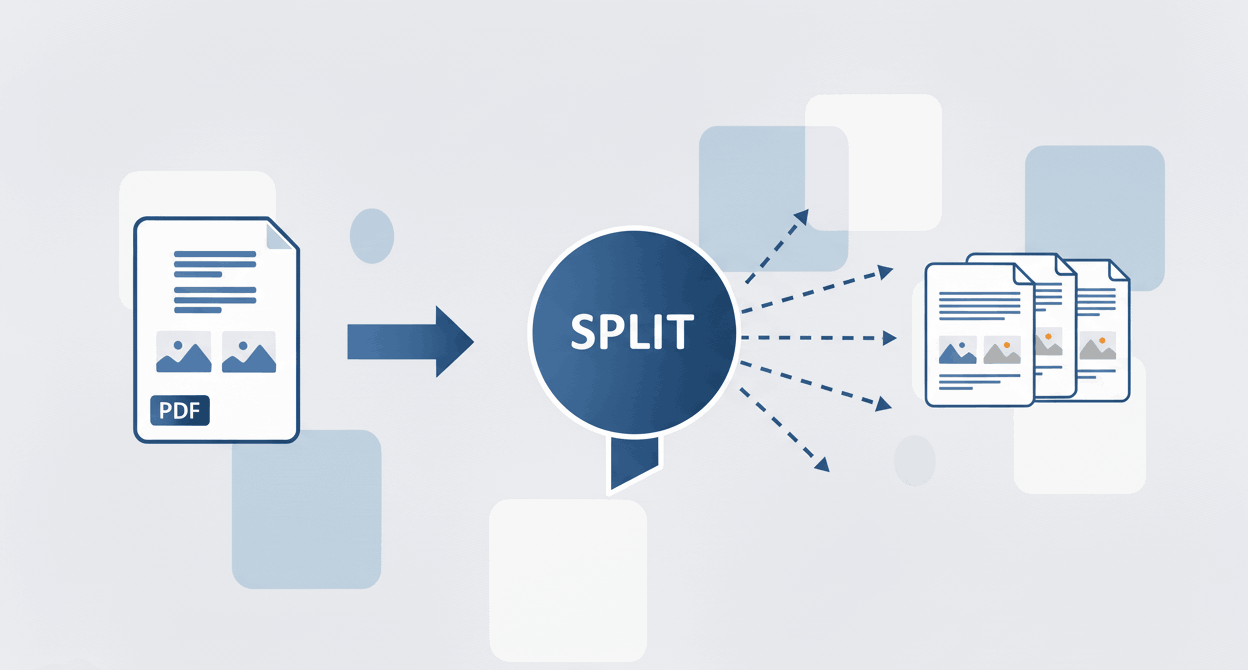
How to Split PDF files online
Discover how to separate a PDF into multiple files, unmerge documents, and extract pages securely.