How to Open PDF on iPhone
(Save Data & Load Instantly)
Quick Summary: Want to know how to get your iPhone to open PDF files easily? You do not need to download any heavy apps. Using our secure, zero-upload PDF reader, you can open massive 100MB to 150MB files directly in your mobile browser. This method is incredibly fast, highly user-friendly, and saves your mobile data since files are not uploaded to any remote server.
Lightning Fast
Don't wait for uploads. Open extremely large files (up to 150MB) instantly directly within your phone's screen.
Save Mobile Data
Because of our zero-upload technology, no megabytes (MB) are wasted uploading files to a server. You only use data to load the site.
100% Privacy
Your private documents stay entirely on your phone. Nothing is ever sent to or stored on external databases.
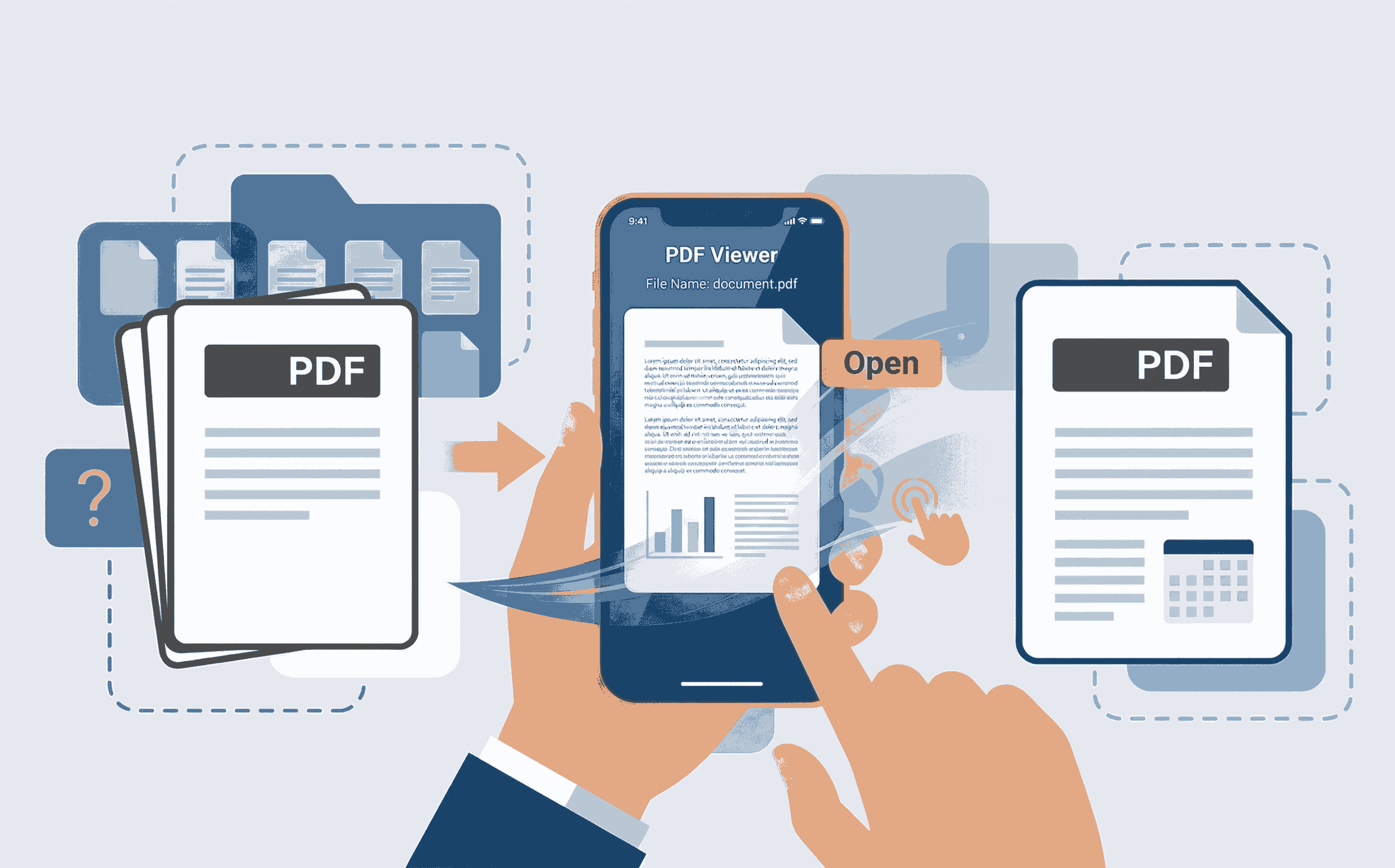
How Do I Open a PDF File on My Phone? (Step-by-Step)
Opening a PDF on your iOS or Android device should be a seamless experience. Follow these simple steps:
- 1. Open Browser: Launch Safari or Google Chrome on your iPhone and visit the PDF Reader tool.
- 2. Select File: Tap the upload button. Your iPhone will prompt you to select a document. Navigate to your Files app and choose the PDF.
- 3. View Instantly: The document will render immediately. Zoom, scroll, and read comfortably without any lag.
Why is My Phone Not Opening a PDF?
Many iPhone users encounter frustrating errors when trying to read documents natively. This usually happens when:
- The file is too large: Built-in viewers often crash when handling hefty 100MB+ files.
- Corrupted formatting: Sometimes email attachments don't download correctly.
- Missing dedicated reader: Relying on default preview apps limits your viewing experience.
By using a dedicated web-based reader like PDFSolving, you bypass device limitations. Our system is designed to handle complex graphics and massive documents effortlessly.

Frequently Asked Questions
❓ How do I get my iPhone to open PDF Files?
To easily get your iPhone to open PDF files, use a browser-based tool like PDFSolving. Simply navigate to the reader, tap to select your file from your local storage, and it will render instantly on your screen without requiring a dedicated App Store download.
❓ Where is the PDF file on an iPhone?
When you download a PDF from Safari or an email on an iPhone, it is typically saved in the native 'Files' app. You can find it by opening the 'Files' app and checking the 'Downloads' folder or looking under 'On My iPhone'.
❓ How do I PDF from my iPhone?
If you need to create or edit a PDF, you can use our suite of tools directly from your mobile browser. You can convert images to PDF, merge files, or extract pages easily while on the go.
❓ Will opening large PDFs consume a lot of internet data?
Not with our tool! Because our system uses zero-upload, local-browser technology, you spend absolutely no megabytes (MB) uploading the file. You only use a tiny bit of data to load the website interface itself. Your 100MB+ files are processed locally on the phone's memory.
Explore More PDF Guides
Learn tips and tricks for managing your documents efficiently.
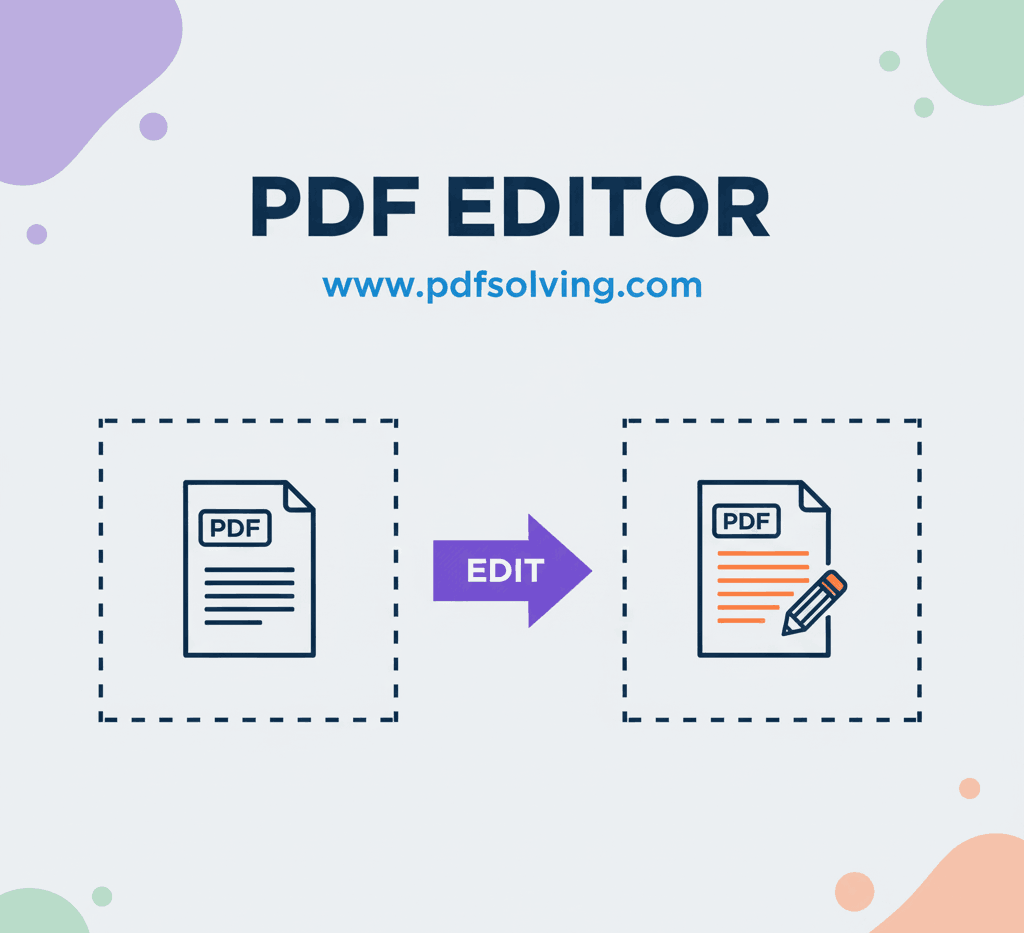
How to edit PDF Document online
Add and edit text, images, borders, digital signatures, and shapes in your PDF documents.
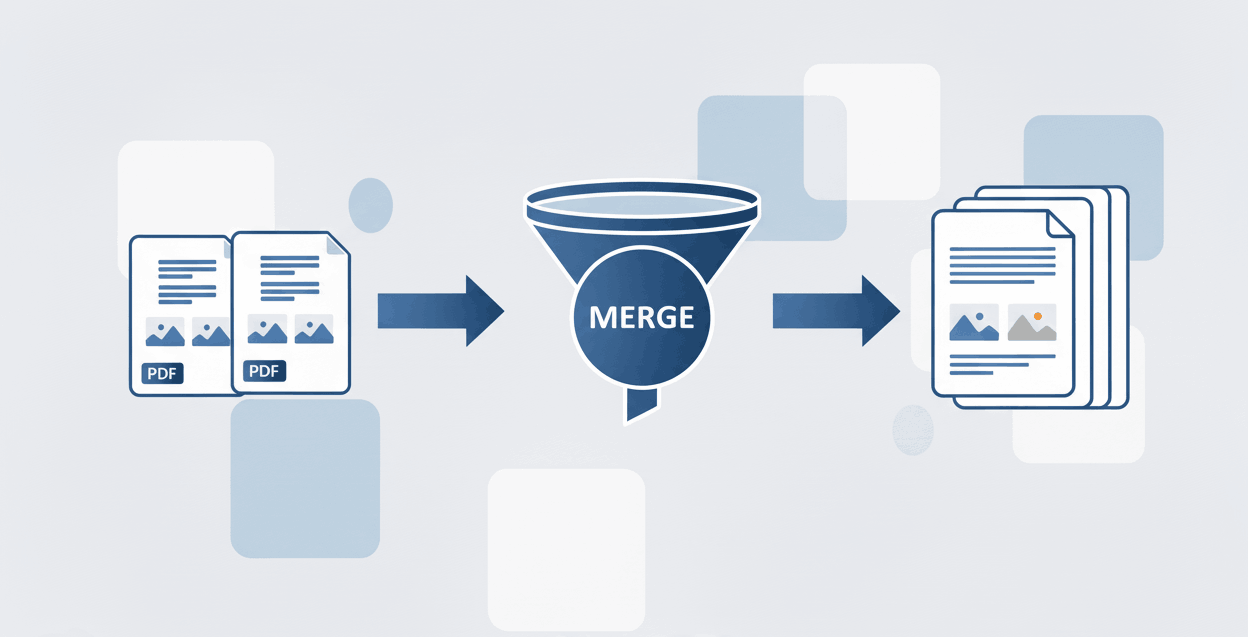
How to Merge PDF files online
Learn to securely merge and combine multiple PDF documents into a single file in seconds.
How to Remove PDF page online
Learn how to safely extract, delete, and take off unwanted pages from your PDF documents.