How to Add a Digital Signature to a PDF
on iPhone & iPad
Quick Answer: To add a digital signature to a PDF on your iPhone or iPad, you don't need to download any heavy apps. Simply open Safari or Chrome, go to PDFSolving's secure Sign PDF tool, and select your file from iCloud or your local storage. Use your finger or Apple Pencil to smoothly draw your signature directly on the screen, place it on the document line, and tap download. The entire process happens locally on your iOS device without uploading your confidential file to any server.
No App Required
Skip the App Store. Save your iPhone's storage space by using our powerful browser-based signature tool directly in Safari.
Apple Pencil Ready
Using an iPad? Draw your signature flawlessly with your Apple Pencil for a hyper-realistic, pressure-sensitive look.
iOS On-Device Privacy
Thanks to Zero-Upload technology, your sensitive business contracts never leave your iPhone. It's processed 100% locally.
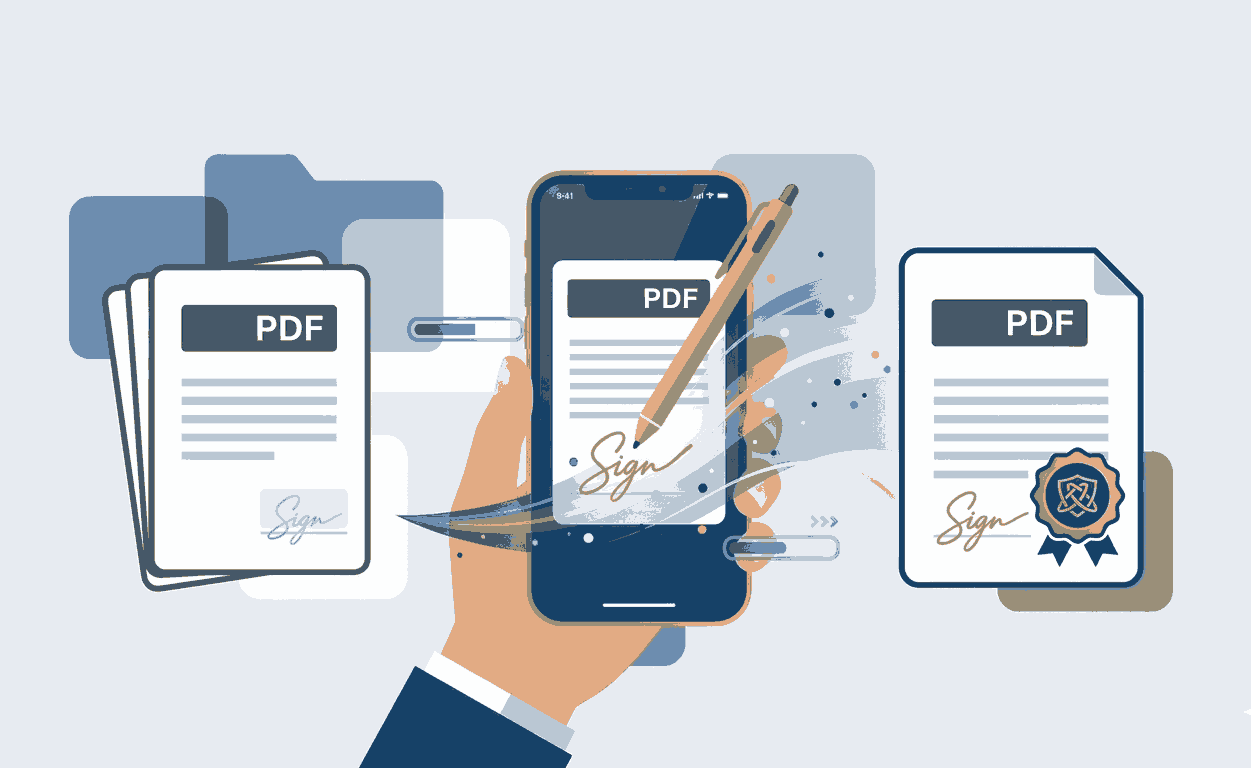
Step-by-Step: Signing a PDF on iOS
Whether you're commuting with your iPhone or at a cafe with your iPad, signing documents is just a few taps away:
- 1. Open Browser: Launch Safari or Chrome on your iOS device and visit the Sign PDF tool.
- 2. Upload from Files: Tap the upload area to select your PDF directly from your iPhone's 'Files' app or iCloud Drive.
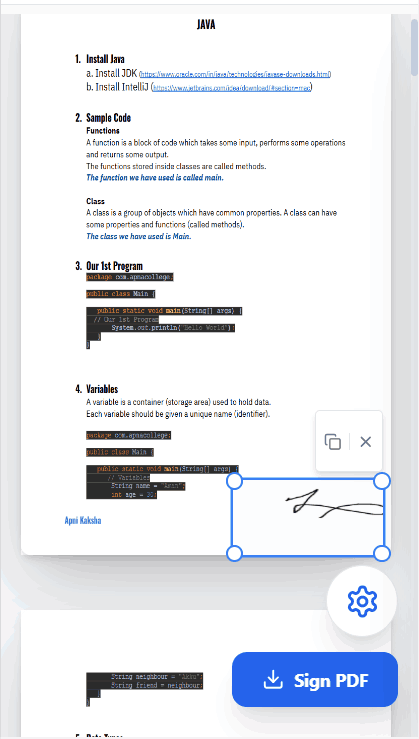
- 3. Draw Signature: Tap the signature tool. Use your finger (iPhone) or Apple Pencil (iPad) to comfortably sign your name on the screen.
- 4. Save to Device: Drag the signature to the correct spot, tap 'Sign PDF', and the finalized document will instantly download to your device.
Why Browser-Based Signing is Better for iOS Users
Most guides on "how to add a digital signature to a pdf on iphone and ipad" will tell you to download complicated third-party apps. These apps often require you to create an account, pay for premium subscriptions, or worse—they silently upload your personal documents to their cloud servers.
PDFSolving changes the game. Our platform acts as a native application right inside your Safari browser. By utilizing modern WebAssembly, your iPhone's processor does all the work locally. You get lightning-fast speeds, zero subscription fees, and the absolute peace of mind that your data remains strictly on your device.
Frequently Asked Questions for iOS
❓ Can I sign a PDF on my iPhone without downloading an app?
Yes! You don't need to bloat your phone with heavy applications. You can use a secure, web-based tool like PDFSolving directly in Safari or Chrome to sign documents instantly.
❓ How do I save the signed PDF back to my iPhone?
Once you tap the final 'Sign PDF' or 'Download' button, Safari will prompt you to download the file. It will automatically be saved to the 'Downloads' folder within your default iOS 'Files' app.
❓ Does this tool work well with the Apple Pencil on iPad?
Absolutely. Drawing your signature with an Apple Pencil on our platform provides a highly responsive and smooth experience, resulting in a clean, realistic digital signature that looks just like pen on paper.
❓ Is it safe to sign tax or legal forms on my iPad browser?
Yes, provided you use a Zero-Upload service like ours. Because your document is rendered and signed locally using your device's memory, it is never transmitted over the internet, keeping your sensitive data completely safe from hackers.
Explore More Document Guides
Learn tips and tricks for managing your files efficiently.
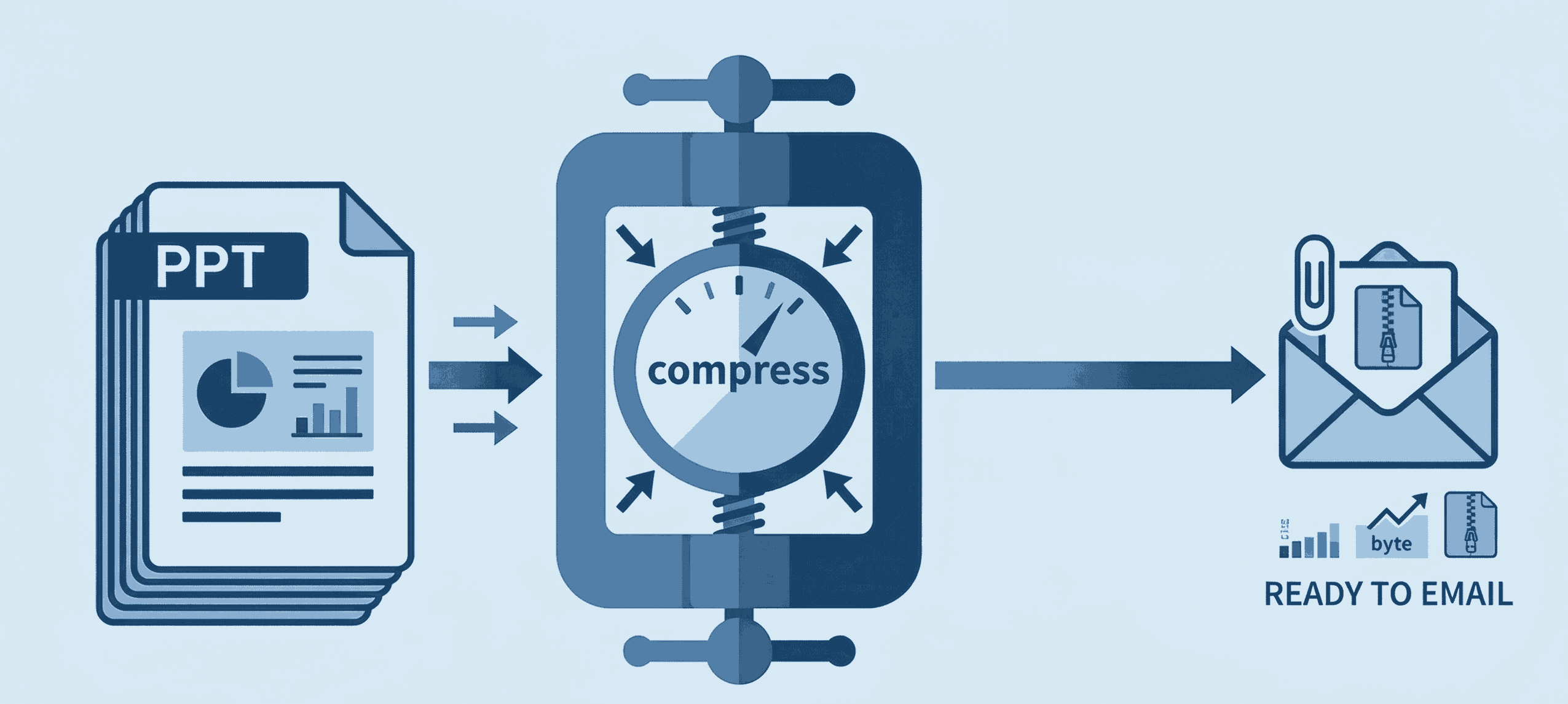
How to Compress PPT for Email
Shrink heavy PowerPoint files instantly to bypass email attachment limits securely.
How to Electronically Sign a PDF
Learn how to securely add your digital signature to any document for free online.
How to edit PDF Document online
Add and edit text, images, borders, digital signatures, and shapes in your PDF documents.