
How to Compress Excel File
Containing Multiple Images
Quick Summary: Want to know how to compress an Excel file containing multiple images? When you insert high-res photos or screenshots into a spreadsheet, the file size explodes, making it impossible to email. Our free, browser-based tool intelligently optimizes these embedded images to reduce your file size by up to 90%. Best of all, it features zero-upload technology, so your sensitive data never leaves your device and you waste zero mobile data (MB).
Optimize Images Smartly
We automatically compress the embedded pictures and screenshots in your Excel file without making them blurry or unreadable.
90% File Reduction
Shrink heavy spreadsheets drastically. Turn a 50MB file filled with product photos into a 5MB email-friendly document.
Save Mobile Data (MB)
Your document is processed locally in your browser. You save 100% of internet data since there are no heavy server uploads.
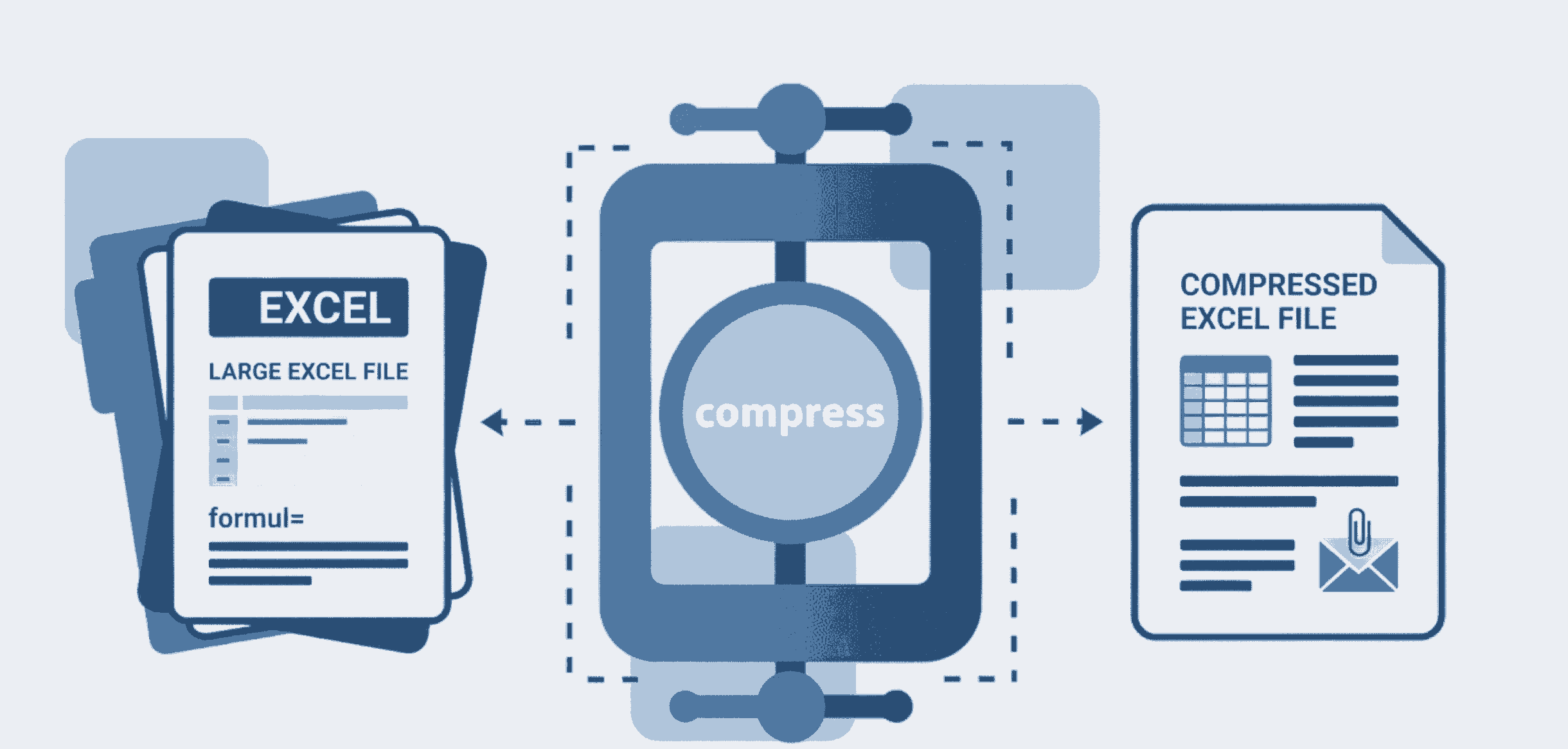
How to Shrink Excel Files with Pictures (Step-by-Step)
Sharing large spreadsheets shouldn't be a hassle. Follow these easy steps to reduce your Excel file size:
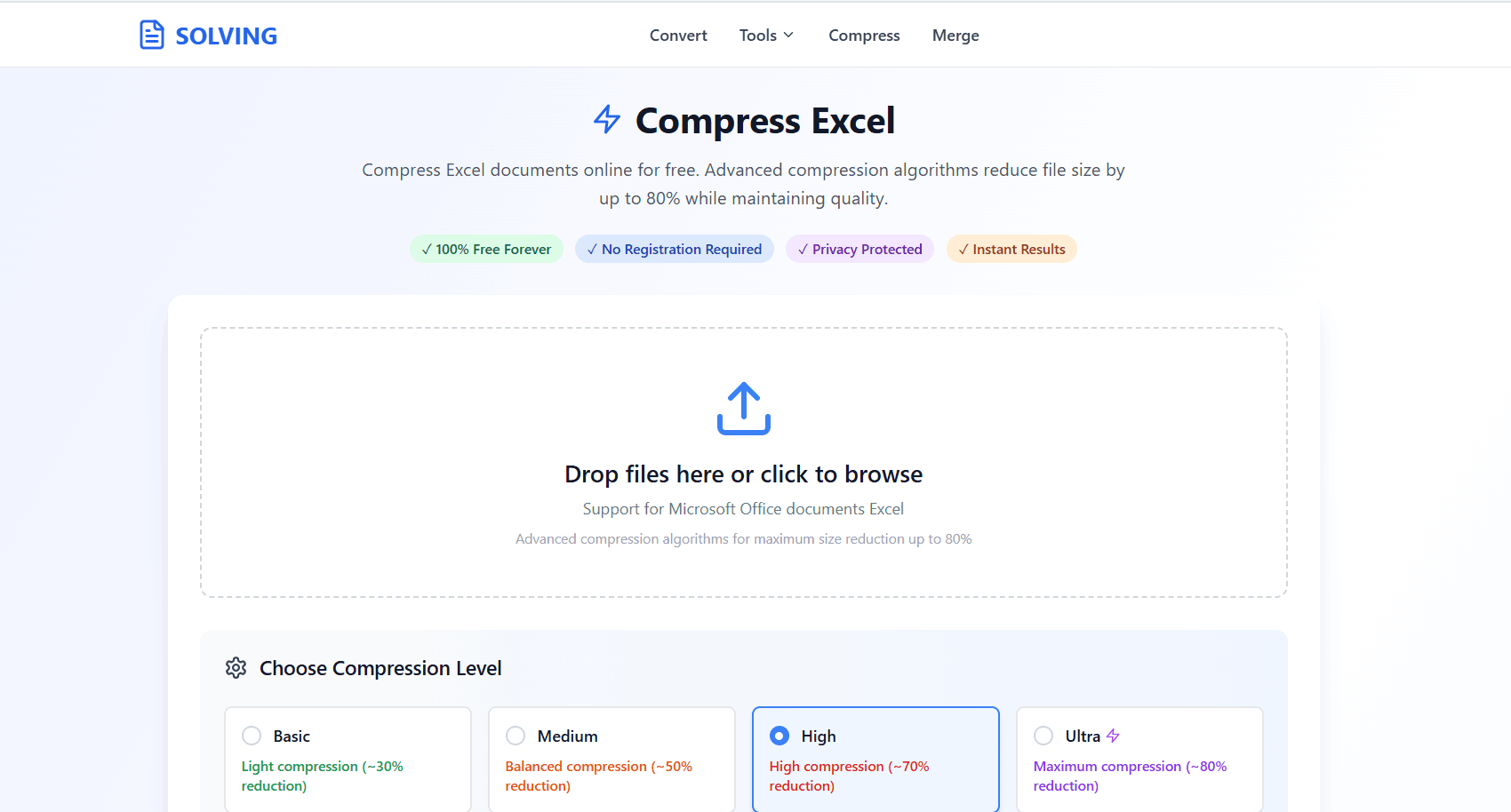
- 1. Open Compressor: Navigate to the Compress Excel tool on your phone, Mac, or PC.
- 2. Upload File: Drag and drop your heavy spreadsheet containing multiple images. It loads directly on your screen.
- 3. Compress & Download: Click compress. Our system instantly optimizes the photos and removes bloat. Download your lightweight file securely.
Why Do Images Make Excel Files So Massive?
When you insert a high-resolution photo from your phone or a dense screenshot into Microsoft Excel, the software often saves the original, uncompressed media. If you have 20 or 30 product images, your file size can easily exceed 50MB.
Our premium-tier compression engine targets these specific assets. Instead of just zipping the file, PDFSolving intelligently reduces the resolution and DPI of the embedded images to a screen-friendly format. You get a professional, drastically reduced file without losing your formulas or layout data—completely for free.
Frequently Asked Questions
❓ How to compress excel file containing multiple images?
Use a browser-based tool like PDFSolving. Upload your Excel document, and our system will automatically target and optimize the embedded high-resolution pictures, shrinking the file size drastically while keeping your spreadsheet data perfectly intact.
❓ Will compressing blur my embedded images?
No. Our premium algorithm optimizes internal image resolutions smartly (usually reducing them to a standard 150-220 DPI) so that your photos, charts, and graphics remain clear and readable on screens without inflating the file size.
❓ Is it safe to compress confidential business spreadsheets?
Absolutely. We proudly utilize Zero-Upload technology. Your Excel file is processed completely locally inside your device's browser memory and is never uploaded to any external servers.
❓ Does this tool waste my mobile data (MBs)?
No! Because the heavy file isn't uploaded to a remote server and downloaded back, you save 100% of the upload and download data. You only use a tiny amount of data to load the webpage interface.
Explore More Document Guides
Learn tips and tricks for managing your files efficiently.
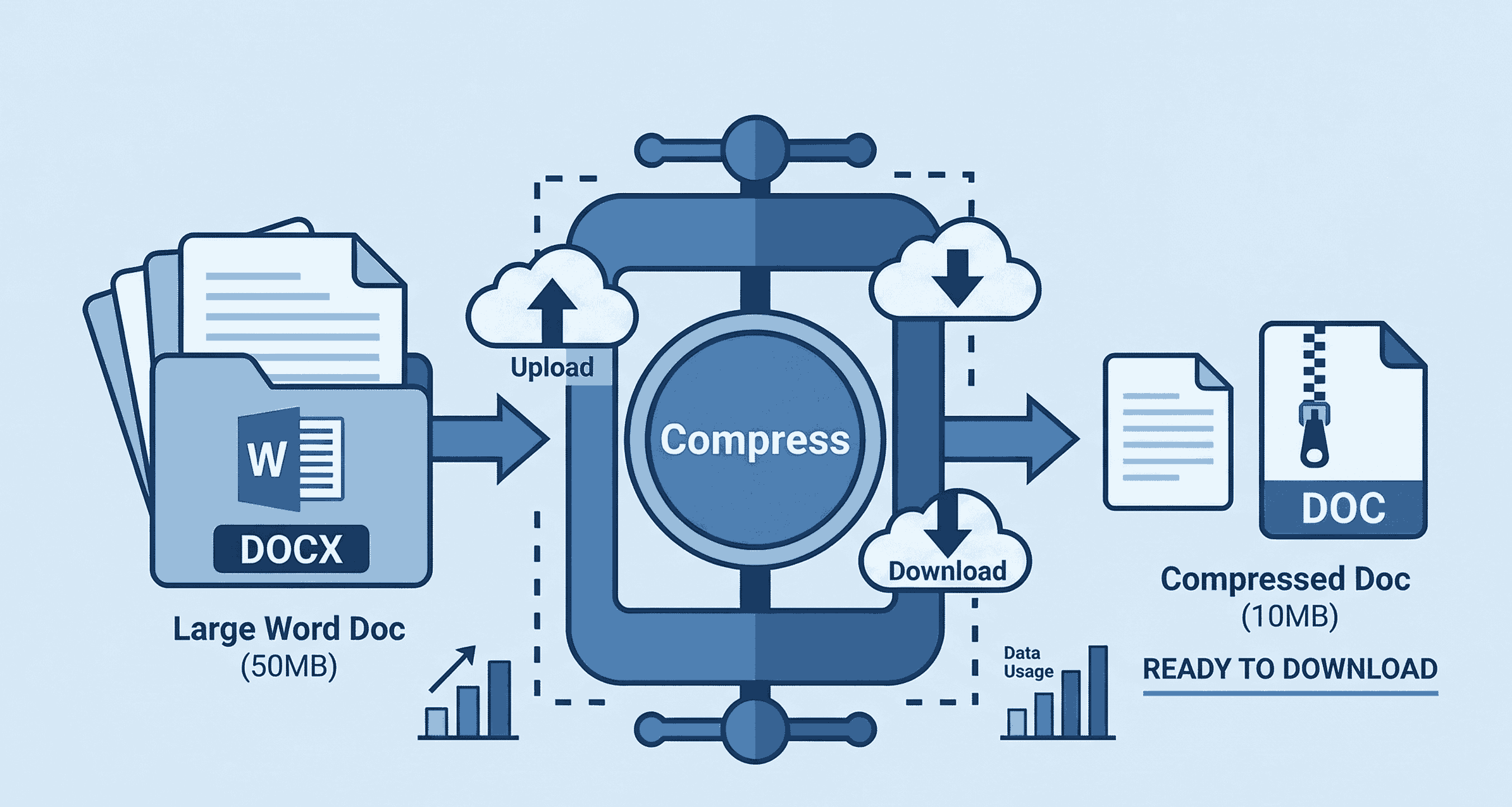
How to Compress Word Documents Online
Learn how to shrink large Microsoft Word documents instantly with custom levels.
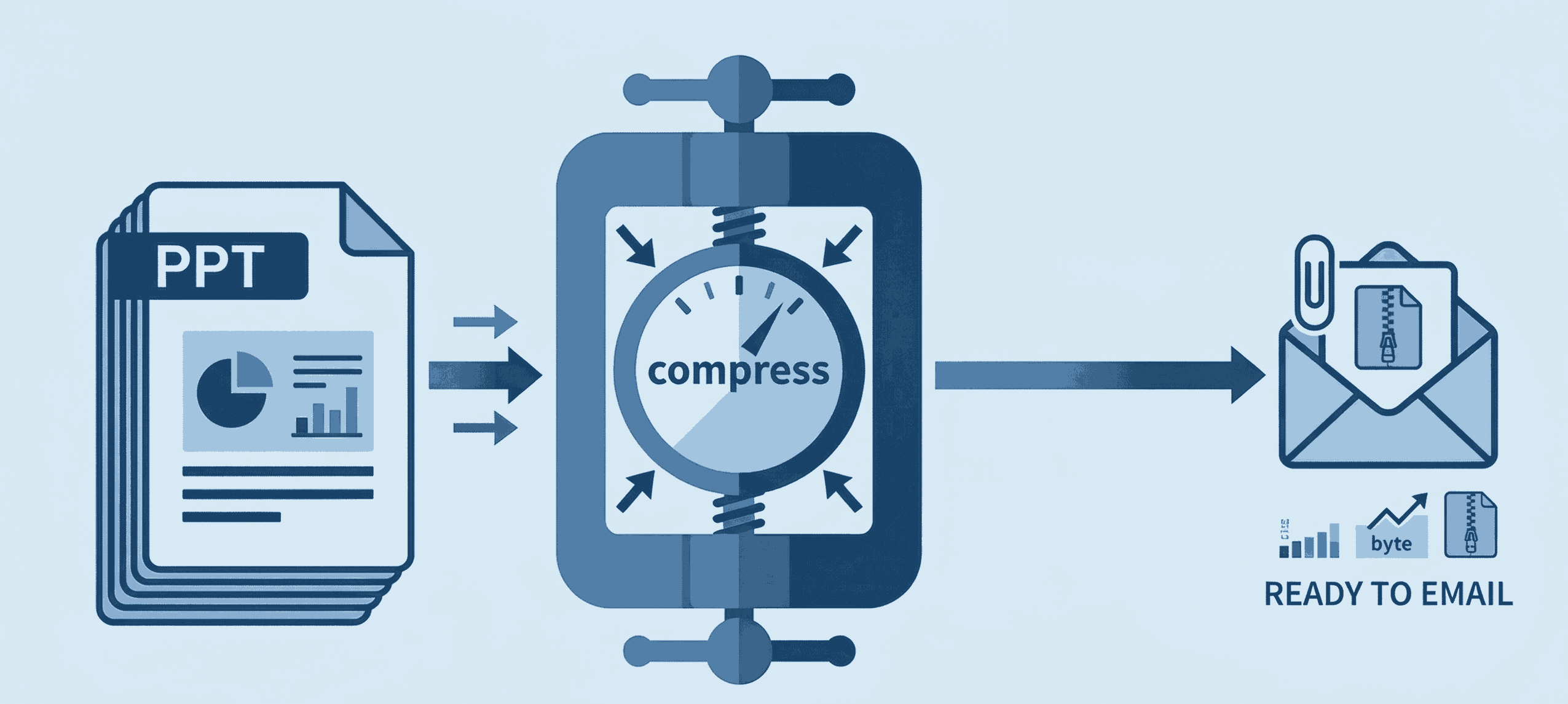
How to Compress PPT for Email
Shrink heavy PowerPoint files instantly to bypass email attachment limits securely.
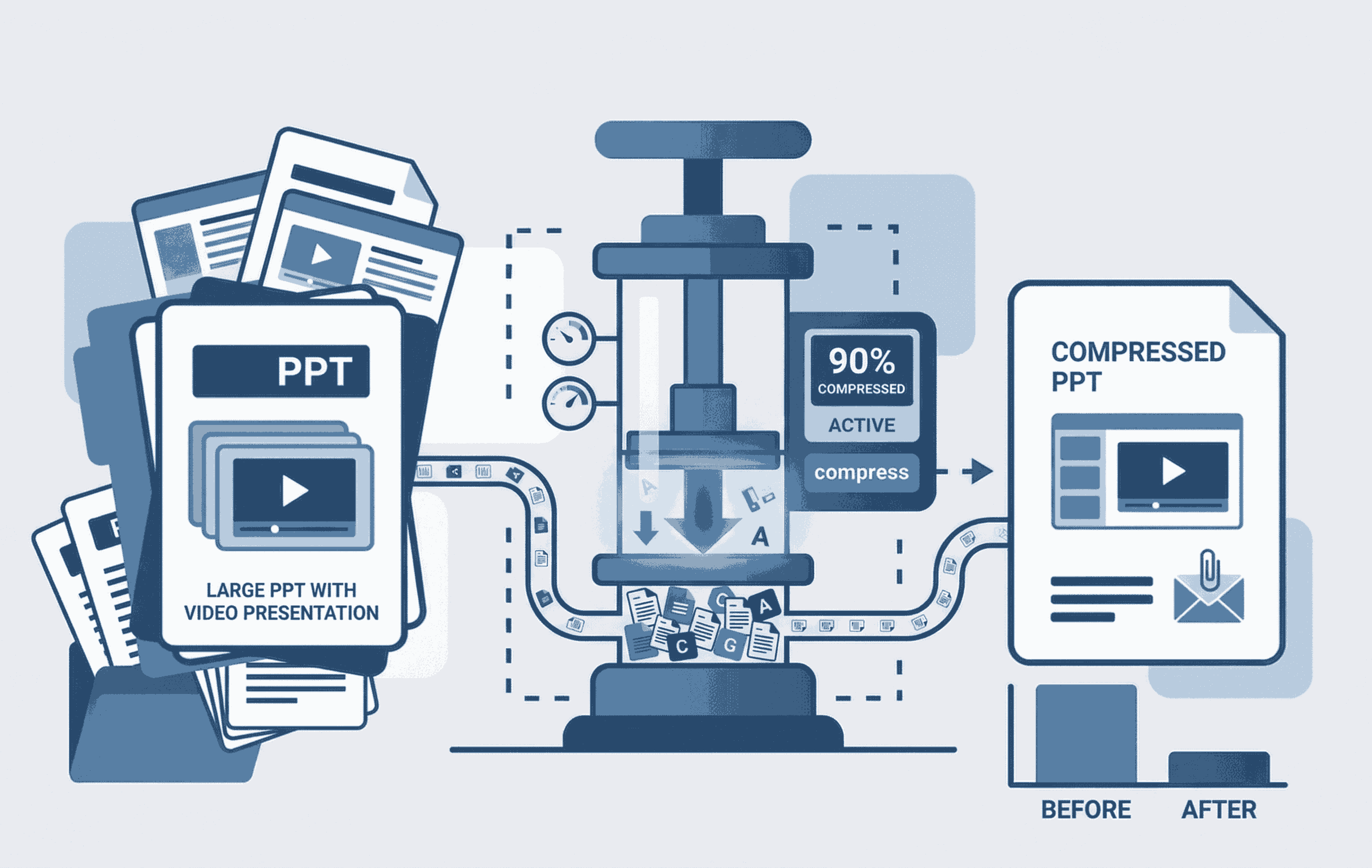
How to Compress PPT with Video
Learn to shrink heavy PowerPoint files containing embedded videos seamlessly.